Do you know? Twitter is a social networking and microblogging service, enabling its users to send and read messages called tweets. Most of the bloggers, have a twitter account. The purpose of this trick is allows bloggers manage their blog while seeing twitter upadetes. So, i think it's very useful, try it now!
1. Go to Twitter Widgets (You must log in first)
2. Select "My Website", then click on the "Profile Widget'
3. You can setting your widget, if you finish, click "Finish &Grab Code"
4. After that, you can get the code. But, if you want to faster, click on the blogger icon
5. Widget below is example if you finish it
Saturday, December 18, 2010
Friday, December 17, 2010
How To Change Read More With An Icon / Button
Usually, after we get read more code and we use it, we only have "Read More" (word), no icon or button. So how to change "Read More" (word) with an icon or button? It's very easy, just follow the steps below.
1. Log in to your blogger account
2. Go to Design>>>Edit HTML
3. Thick "Expand Widget Templates"
4. Find this word : Read More
5. Change Read More with the code below
<img border='0' src='ICON URL'/>
6. Change ICON URL with your icon URL. Example :
<img border='0' src='https://lh4.googleusercontent.com/-IZgq6Z2Kz8M/TXB8F8lMlEI/AAAAAAAAAPA/cfMaqkz24Rc/s1600/readmore_button.png'/>
7. Save it
The example of read more icon / button :
1. Log in to your blogger account
2. Go to Design>>>Edit HTML
3. Thick "Expand Widget Templates"
4. Find this word : Read More
5. Change Read More with the code below
<img border='0' src='ICON URL'/>
6. Change ICON URL with your icon URL. Example :
<img border='0' src='https://lh4.googleusercontent.com/-IZgq6Z2Kz8M/TXB8F8lMlEI/AAAAAAAAAPA/cfMaqkz24Rc/s1600/readmore_button.png'/>
7. Save it
The example of read more icon / button :
<img border='0' src='http://www.tpmi.org/images/66251/ReadMoreButton.gif'/>
<img border='0' src='http://www.visitsouthwales.com/img/buttons/read-more-button.jpg'/>
<img border='0' src='http://www.newbingobilly.com/shared/images/read-more-button.gif'/>
<img border='0' src='http://www.merricksystems.com/assets/images/button-read-more.gif'/>
<img border='0' src='http://www.pangaeaworld.com/images/read_more_button.gif'/>
Find another Read More icon / button by search in Google
How To Add Automatic "Read More" In Blog
Read more have a function for save our blog home page. Because if we are not using read more, our home page will heavy and can cause decrease our blog speed. Beside that, read more can excite our visitors to read our blog article. So, why you don't try it now? Just follow the steps below.
1. Log in to your blogger account
2. Go to Design>>>Edit HTML
3. Find this code : </head>
4. Copy the code below
7. Paste the code above </head>
8. Then, find this code : <data:post.body/>
9. Change <data:post.body/> with code below
10. Save it
1. Log in to your blogger account
2. Go to Design>>>Edit HTML
3. Find this code : </head>
4. Copy the code below
<script type='text/javascript'>
var thumbnail_mode = "float" ;
summary_noimg = 250;
summary_img = 250;
img_thumb_height = 120;
img_thumb_width = 120;
</script>
<script type='text/javascript'>
//<![CDATA[
function removeHtmlTag(strx,chop){
if(strx.indexOf("<")!=-1)
{
var s = strx.split("<");
for(var i=0;i<s.length;i++){
if(s[i].indexOf(">")!=-1){
s[i] = s[i].substring(s[i].indexOf(">")+1,s[i].length);
}
}
strx = s.join("");
}
chop = (chop < strx.length-1) ? chop : strx.length-2;
while(strx.charAt(chop-1)!=' ' && strx.indexOf(' ',chop)!=-1) chop++;
strx = strx.substring(0,chop-1);
return strx+'...';
}
function createSummaryAndThumb(pID){
var div = document.getElementById(pID);
var imgtag = "";
var img = div.getElementsByTagName("img");
var summ = summary_noimg;
if(img.length>=1) {
imgtag = '<span style="float:left; padding:0px 10px 5px 0px;"><img src="'+img[0].src+'" width="'+img_thumb_width+'px" height="'+img_thumb_height+'px"/></span>';
summ = summary_img;
}
var summary = imgtag + '<div>' + removeHtmlTag(div.innerHTML,summ) + '</div>';
div.innerHTML = summary;
}
//]]>
</script>
var thumbnail_mode = "float" ;
summary_noimg = 250;
summary_img = 250;
img_thumb_height = 120;
img_thumb_width = 120;
</script>
<script type='text/javascript'>
//<![CDATA[
function removeHtmlTag(strx,chop){
if(strx.indexOf("<")!=-1)
{
var s = strx.split("<");
for(var i=0;i<s.length;i++){
if(s[i].indexOf(">")!=-1){
s[i] = s[i].substring(s[i].indexOf(">")+1,s[i].length);
}
}
strx = s.join("");
}
chop = (chop < strx.length-1) ? chop : strx.length-2;
while(strx.charAt(chop-1)!=' ' && strx.indexOf(' ',chop)!=-1) chop++;
strx = strx.substring(0,chop-1);
return strx+'...';
}
function createSummaryAndThumb(pID){
var div = document.getElementById(pID);
var imgtag = "";
var img = div.getElementsByTagName("img");
var summ = summary_noimg;
if(img.length>=1) {
imgtag = '<span style="float:left; padding:0px 10px 5px 0px;"><img src="'+img[0].src+'" width="'+img_thumb_width+'px" height="'+img_thumb_height+'px"/></span>';
summ = summary_img;
}
var summary = imgtag + '<div>' + removeHtmlTag(div.innerHTML,summ) + '</div>';
div.innerHTML = summary;
}
//]]>
</script>
7. Paste the code above </head>
8. Then, find this code : <data:post.body/>
9. Change <data:post.body/> with code below
<b:if cond='data:blog.pageType != "item"'>
<div expr:id='"summary" + data:post.id'><data:post.body/></div>
<script type='text/javascript'>createSummaryAndThumb("summary<data:post.id/>");</script>
<span class='rmlink' style='float:left'><a expr:href='data:post.url'>Read More</a></span>
</b:if>
<b:if cond='data:blog.pageType == "item"'><data:post.body/></b:if>
<div expr:id='"summary" + data:post.id'><data:post.body/></div>
<script type='text/javascript'>createSummaryAndThumb("summary<data:post.id/>");</script>
<span class='rmlink' style='float:left'><a expr:href='data:post.url'>Read More</a></span>
</b:if>
<b:if cond='data:blog.pageType == "item"'><data:post.body/></b:if>
10. Save it
How To Make A Clock And Calendar To Follow The Cursor
Give star effect on the cursor? That's usual. Change the cursor with another icon? Easy. If, make a clock and calendar to follow the cursor? It's amazing. Maybe this trick is rarely found on other blogs, but to give thebest for readers, we are ready to post a rare trick. Directly, if you want to try this trick, just follow the steps below.
1. Log in to your blogger account
2. Go to Design>>>Page Elements>>>Add Gadget
3. Choose HTML/Java Script
How To Set Marquee Effect (Running Text) In Title Bar
Now, many people like marquee effect. They like it because marquee are simple and attractive widget. Usually they put the marquee in the sidebar. But, I will teach you how to put it on the Title Bar. By the way, do you know Title Bar? Title Bar is a tab which contain the name of the page.
OK if you already know Title Bar, you can learn it by following the steps below
1. Log in to your blogger account
2. Go to Design>>>Edit HTML
3. Find this code : </head>
4. Copy the code below
<script type='text/javascript'>
//<![CDATA[
function tb9_makeArray(n){
this.length = n;
return this.length;
}
tb9_messages = new tb9_makeArray(1);
tb9_messages[0] = "Welcome To My Blog";
tb9_rptType = 'infinite';
tb9_rptNbr = 5;
tb9_speed = 100;
tb9_delay = 2000;
var tb9_counter=1;
var tb9_currMsg=0;
var tb9_timerID = null
var tb9_bannerRunning = false
var tb9_state = ""
tb9_clearState()
function tb9_stopBanner() {
if (tb9_bannerRunning)
clearTimeout(tb9_timerID)
tb9_timerRunning = false
}
function tb9_startBanner() {
tb9_stopBanner()
tb9_showBanner()
}
function tb9_clearState() {
tb9_state = ""
for (var i = 0; i < tb9_messages[tb9_currMsg].length; ++i) {
tb9_state += "0"
}
}
function tb9_showBanner() {
if (tb9_getString()) {
tb9_currMsg++
if (tb9_messages.length <= tb9_currMsg) {
if ((tb9_rptType == 'finite') && (tb9_counter==tb9_rptNbr)){
tb9_stopBanner();
return;
}
tb9_counter++;
tb9_currMsg=0;
}
tb9_clearState()
tb9_timerID = setTimeout("tb9_showBanner()", tb9_delay)
}
else {
var tb9_str = ""
for (var j = 0; j < tb9_state.length; ++j) {
tb9_str += (tb9_state.charAt(j) == "1") ? tb9_messages[tb9_currMsg].charAt(j) : "____"
}
document.title = tb9_str
tb9_timerID = setTimeout("tb9_showBanner()", tb9_speed)
}
}
function tb9_getString() {
var full = true
for (var j = 0; j < tb9_state.length; ++j) {
if (tb9_state.charAt(j) == 0)
full = false
}
if (full) return true
while (1) {
var num = tb9_getRandom(tb9_messages[tb9_currMsg].length)
if (tb9_state.charAt(num) == "0")
break
}
tb9_state = tb9_state.substring(0, num) + "1" + tb9_state.substring(num + 1, tb9_state.length)
return false
}
function tb9_getRandom(max) {
var now = new Date()
var num = now.getTime() * now.getSeconds() * Math.random()
return num % max
}
tb9_startBanner()
//]]>
</script>
5. Paste above </head>
6. Save it
NOTE : Change the red words with your message (Welcome To My Blog)
Thursday, December 16, 2010
How To Make A Marquee Effect (Running Text) In Blog
What is marquee? Marquee is a HTML program to make a running/moving text. Many people like this, because by wearing marquee in our blog, the blog will be attractive. Before I tell how to make it, it's better for you to know some HTML code in marquee.
Marquee can be made with tag <marquee>. . .</marquee>
bgcolor="color" (set the background color)
direction="left/right/up/down" (set the direction)
behavior="scroll/side/alternate" (set the characteristic of text)
tittle="message" (your message that will be display)
scrollamount="number" (set the speed of text)
scrolldelay="number" (set the delay time)
loop="number" (set the number of loops)
width="number" (set the width of text background)
height="number" (set the height of text background)
NOTE : Change the blue word
Confuse? I give you some examples, see below
<marquee align="center" direction="right" height="70" scrollamount="2" width="100%">
Give us a comment
</marquee>
<marquee align="center" direction="left" height="70" scrollamount="3" width="100%" behavior="alternate">
Follow us
</marquee>
<marquee bgcolor="RED" width="100%" scrollamount="3" behavior="alternate">
Get many tricks for your blog
</marquee>
<marquee onmouseover="this.stop( ) " onmouseout="this.start ( ) " scrollamount="2" drection="up" width="100%" height="100" align="center">
Follow us
</marquee>
For another marquee effect, you can change the HTML code and make your own attractive marquee effect!
Marquee can be made with tag <marquee>. . .</marquee>
bgcolor="color" (set the background color)
direction="left/right/up/down" (set the direction)
behavior="scroll/side/alternate" (set the characteristic of text)
tittle="message" (your message that will be display)
scrollamount="number" (set the speed of text)
scrolldelay="number" (set the delay time)
loop="number" (set the number of loops)
width="number" (set the width of text background)
height="number" (set the height of text background)
NOTE : Change the blue word
Confuse? I give you some examples, see below
<marquee align="center" direction="right" height="70" scrollamount="2" width="100%">
Give us a comment
</marquee>
<marquee align="center" direction="left" height="70" scrollamount="3" width="100%" behavior="alternate">
Follow us
</marquee>
<marquee bgcolor="RED" width="100%" scrollamount="3" behavior="alternate">
Get many tricks for your blog
</marquee>
<marquee onmouseover="this.stop( ) " onmouseout="this.start ( ) " scrollamount="2" drection="up" width="100%" height="100" align="center">
Follow us
</marquee>
For another marquee effect, you can change the HTML code and make your own attractive marquee effect!
Saturday, December 11, 2010
How to Add Rainbow Effect For Link And Post Title
Usually when we moved our cursor to the post title, the color on the title will change. But the change is only one color. Therefore, I will teach you how to change the color into Rainbow Effect. So, if you want to learn it, just follow the steps below.
1. Log in to your blogger account
2. Go to Design>>>Edit HTML
3. Find this code : </head>
3. Then copy the code below
<script type='text/javascript'>
//<![CDATA[
var rate = 20;
if (document.getElementById)
window.onerror=new Function("return true")
var objActive; // The object which event occured in
var act = 0; // Flag during the action
var elmH = 0; // Hue
var elmS = 128; // Saturation
var elmV = 255; // Value
var clrOrg; // A color before the change
var TimerID; // Timer ID
if (document.all) {
document.onmouseover = doRainbowAnchor;
document.onmouseout = stopRainbowAnchor;
}
else if (document.getElementById) {
document.captureEvents(Event.MOUSEOVER | Event.MOUSEOUT);
document.onmouseover = Mozilla_doRainbowAnchor;
document.onmouseout = Mozilla_stopRainbowAnchor;
}
function doRainbow(obj)
{
if (act == 0) {
act = 1;
if (obj)
objActive = obj;
else
objActive = event.srcElement;
clrOrg = objActive.style.color;
TimerID = setInterval("ChangeColor()",100);
}
}
function stopRainbow()
{
if (act) {
objActive.style.color = clrOrg;
clearInterval(TimerID);
act = 0;
}
}
function doRainbowAnchor()
{
if (act == 0) {
var obj = event.srcElement;
while (obj.tagName != 'A' && obj.tagName != 'BODY') {
obj = obj.parentElement;
if (obj.tagName == 'A' || obj.tagName == 'BODY')
break;
}
if (obj.tagName == 'A' && obj.href != '') {
objActive = obj;
act = 1;
clrOrg = objActive.style.color;
TimerID = setInterval("ChangeColor()",100);
}
}
}
function stopRainbowAnchor()
{
if (act) {
if (objActive.tagName == 'A') {
objActive.style.color = clrOrg;
clearInterval(TimerID);
act = 0;
}
}
}
function Mozilla_doRainbowAnchor(e)
{
if (act == 0) {
obj = e.target;
while (obj.nodeName != 'A' && obj.nodeName != 'BODY') {
obj = obj.parentNode;
if (obj.nodeName == 'A' || obj.nodeName == 'BODY')
break;
}
if (obj.nodeName == 'A' && obj.href != '') {
objActive = obj;
act = 1;
clrOrg = obj.style.color;
TimerID = setInterval("ChangeColor()",100);
}
}
}
function Mozilla_stopRainbowAnchor(e)
{
if (act) {
if (objActive.nodeName == 'A') {
objActive.style.color = clrOrg;
clearInterval(TimerID);
act = 0;
}
}
}
function ChangeColor()
{
objActive.style.color = makeColor();
}
function makeColor()
{
// Don't you think Color Gamut to look like Rainbow?
// HSVtoRGB
if (elmS == 0) {
elmR = elmV; elmG = elmV; elmB = elmV;
}
else {
t1 = elmV;
t2 = (255 - elmS) * elmV / 255;
t3 = elmH % 60;
t3 = (t1 - t2) * t3 / 60;
if (elmH < 60) {
elmR = t1; elmB = t2; elmG = t2 + t3;
}
else if (elmH < 120) {
elmG = t1; elmB = t2; elmR = t1 - t3;
}
else if (elmH < 180) {
elmG = t1; elmR = t2; elmB = t2 + t3;
}
else if (elmH < 240) {
elmB = t1; elmR = t2; elmG = t1 - t3;
}
else if (elmH < 300) {
elmB = t1; elmG = t2; elmR = t2 + t3;
}
else if (elmH < 360) {
elmR = t1; elmG = t2; elmB = t1 - t3;
}
else {
elmR = 0; elmG = 0; elmB = 0;
}
}
elmR = Math.floor(elmR).toString(16);
elmG = Math.floor(elmG).toString(16);
elmB = Math.floor(elmB).toString(16);
if (elmR.length == 1) elmR = "0" + elmR;
if (elmG.length == 1) elmG = "0" + elmG;
if (elmB.length == 1) elmB = "0" + elmB;
elmH = elmH + rate;
if (elmH >= 360)
elmH = 0;
return '#' + elmR + elmG + elmB;
}
//]]>
</script>
7. And paste it above </head>
8. Save and try it
1. Log in to your blogger account
2. Go to Design>>>Edit HTML
3. Find this code : </head>
3. Then copy the code below
<script type='text/javascript'>
//<![CDATA[
var rate = 20;
if (document.getElementById)
window.onerror=new Function("return true")
var objActive; // The object which event occured in
var act = 0; // Flag during the action
var elmH = 0; // Hue
var elmS = 128; // Saturation
var elmV = 255; // Value
var clrOrg; // A color before the change
var TimerID; // Timer ID
if (document.all) {
document.onmouseover = doRainbowAnchor;
document.onmouseout = stopRainbowAnchor;
}
else if (document.getElementById) {
document.captureEvents(Event.MOUSEOVER | Event.MOUSEOUT);
document.onmouseover = Mozilla_doRainbowAnchor;
document.onmouseout = Mozilla_stopRainbowAnchor;
}
function doRainbow(obj)
{
if (act == 0) {
act = 1;
if (obj)
objActive = obj;
else
objActive = event.srcElement;
clrOrg = objActive.style.color;
TimerID = setInterval("ChangeColor()",100);
}
}
function stopRainbow()
{
if (act) {
objActive.style.color = clrOrg;
clearInterval(TimerID);
act = 0;
}
}
function doRainbowAnchor()
{
if (act == 0) {
var obj = event.srcElement;
while (obj.tagName != 'A' && obj.tagName != 'BODY') {
obj = obj.parentElement;
if (obj.tagName == 'A' || obj.tagName == 'BODY')
break;
}
if (obj.tagName == 'A' && obj.href != '') {
objActive = obj;
act = 1;
clrOrg = objActive.style.color;
TimerID = setInterval("ChangeColor()",100);
}
}
}
function stopRainbowAnchor()
{
if (act) {
if (objActive.tagName == 'A') {
objActive.style.color = clrOrg;
clearInterval(TimerID);
act = 0;
}
}
}
function Mozilla_doRainbowAnchor(e)
{
if (act == 0) {
obj = e.target;
while (obj.nodeName != 'A' && obj.nodeName != 'BODY') {
obj = obj.parentNode;
if (obj.nodeName == 'A' || obj.nodeName == 'BODY')
break;
}
if (obj.nodeName == 'A' && obj.href != '') {
objActive = obj;
act = 1;
clrOrg = obj.style.color;
TimerID = setInterval("ChangeColor()",100);
}
}
}
function Mozilla_stopRainbowAnchor(e)
{
if (act) {
if (objActive.nodeName == 'A') {
objActive.style.color = clrOrg;
clearInterval(TimerID);
act = 0;
}
}
}
function ChangeColor()
{
objActive.style.color = makeColor();
}
function makeColor()
{
// Don't you think Color Gamut to look like Rainbow?
// HSVtoRGB
if (elmS == 0) {
elmR = elmV; elmG = elmV; elmB = elmV;
}
else {
t1 = elmV;
t2 = (255 - elmS) * elmV / 255;
t3 = elmH % 60;
t3 = (t1 - t2) * t3 / 60;
if (elmH < 60) {
elmR = t1; elmB = t2; elmG = t2 + t3;
}
else if (elmH < 120) {
elmG = t1; elmB = t2; elmR = t1 - t3;
}
else if (elmH < 180) {
elmG = t1; elmR = t2; elmB = t2 + t3;
}
else if (elmH < 240) {
elmB = t1; elmR = t2; elmG = t1 - t3;
}
else if (elmH < 300) {
elmB = t1; elmG = t2; elmR = t2 + t3;
}
else if (elmH < 360) {
elmR = t1; elmG = t2; elmB = t1 - t3;
}
else {
elmR = 0; elmG = 0; elmB = 0;
}
}
elmR = Math.floor(elmR).toString(16);
elmG = Math.floor(elmG).toString(16);
elmB = Math.floor(elmB).toString(16);
if (elmR.length == 1) elmR = "0" + elmR;
if (elmG.length == 1) elmG = "0" + elmG;
if (elmB.length == 1) elmB = "0" + elmB;
elmH = elmH + rate;
if (elmH >= 360)
elmH = 0;
return '#' + elmR + elmG + elmB;
}
//]]>
</script>
7. And paste it above </head>
8. Save and try it
Friday, December 10, 2010
How To Add Facebook Like Button For Blog
In Facebook we can like our friend's status. We just click the like button. But in blog, we didn't find this feature. So, I try to bring it to blog. For example you can see it in my every post, there is facebook like button on the top. OK, if you want to try this trick to your blog, just follow the steps below.
1. Log in to your blogger account
2. Go to Design>>>Edit HTML
3. Thick "Expand Widget Templates"
4. Find this code : <div class='post-header-line-1'/>
5. Then copy the below, and paste under <div class='post-header-line-1'/>
6. But, if you didn't find <div class='post-header-line-1'/>, try to find this code <data:post.body/>
7. If you use <data:post.body/>, paste the facebook like button code above <data:post.body/>
8. Save it
1. Log in to your blogger account
2. Go to Design>>>Edit HTML
3. Thick "Expand Widget Templates"
4. Find this code : <div class='post-header-line-1'/>
5. Then copy the below, and paste under <div class='post-header-line-1'/>
<b:if cond='data:blog.pageType == "item"'>
<iframe allowTransparency='true' expr:src='"http://www.facebook.com/plugins/like.php?href=" + data:post.url + "&layout=standard&show_faces=false&width=100&action=like&font=arial&colorscheme=light"' frameborder='0' scrolling='no' style='border:none; overflow:hidden; width:450px; height:40px;'/>
</b:if>
<iframe allowTransparency='true' expr:src='"http://www.facebook.com/plugins/like.php?href=" + data:post.url + "&layout=standard&show_faces=false&width=100&action=like&font=arial&colorscheme=light"' frameborder='0' scrolling='no' style='border:none; overflow:hidden; width:450px; height:40px;'/>
</b:if>
6. But, if you didn't find <div class='post-header-line-1'/>, try to find this code <data:post.body/>
7. If you use <data:post.body/>, paste the facebook like button code above <data:post.body/>
8. Save it
Thursday, December 9, 2010
How to Add Emoticons in Comment Box
This tricks is very useful for you who want to modify the comment box. Why? Because, if you learn this trick you can add emoticons to your comment box. By the way, do you know Emoticon? Emoticon is a facial expression pictorially represented by punctuation and letters, usually to express a writer’s mood. Now, i will teach you how to add emoticons.
1. Log in to your blogger account
2. Go to Design>>>Edit HTML
3. Thick Expand Widget Templates
4. Find this code : </body>
5. Copy the code below, and paste above </body>
6. Find this code : <p class='comment-footer'>
<b:if cond='data:post.embedCommentForm'>
7. Copy the code below, and paste under <p class='comment-footer'>
<b><img border='0' src='http://us.i1.yimg.com/us.yimg.com/i/mesg/emoticons7/21.gif'/>
:))
<img border='0' src='http://us.i1.yimg.com/us.yimg.com/i/mesg/emoticons7/100.gif'/>
:)]
<img border='0' src='http://us.i1.yimg.com/us.yimg.com/i/mesg/emoticons7/71.gif'/>
;))
<img border='0' src='http://us.i1.yimg.com/us.yimg.com/i/mesg/emoticons7/5.gif'/>
;;)
<img border='0' src='http://us.i1.yimg.com/us.yimg.com/i/mesg/emoticons7/4.gif'/>
:D
<img border='0' src='http://us.i1.yimg.com/us.yimg.com/i/mesg/emoticons7/3.gif'/>
;)
<img border='0' src='http://us.i1.yimg.com/us.yimg.com/i/mesg/emoticons7/10.gif'/>
:p
<img border='0' src='http://us.i1.yimg.com/us.yimg.com/i/mesg/emoticons7/20.gif'/>
:((
<img border='0' src='http://us.i1.yimg.com/us.yimg.com/i/mesg/emoticons7/1.gif'/>
:)
<img border='0' src='http://us.i1.yimg.com/us.yimg.com/i/mesg/emoticons7/2.gif'/>
:(
<img border='0' src='http://us.i1.yimg.com/us.yimg.com/i/mesg/emoticons7/8.gif'/>
:X
<img border='0' src='http://us.i1.yimg.com/us.yimg.com/i/mesg/emoticons7/12.gif'/>
=((
<img border='0' src='http://us.i1.yimg.com/us.yimg.com/i/mesg/emoticons7/13.gif'/>
:-o
<img border='0' src='http://us.i1.yimg.com/us.yimg.com/i/mesg/emoticons7/7.gif'/>
:-/
<img border='0' src='http://us.i1.yimg.com/us.yimg.com/i/mesg/emoticons7/11.gif'/>
:-*
<img border='0' src='http://us.i1.yimg.com/us.yimg.com/i/mesg/emoticons7/22.gif'/>
:|
<img border='0' src='http://us.i1.yimg.com/us.yimg.com/i/mesg/emoticons7/35.gif'/>
8-}
<img border='0' src='http://us.i1.yimg.com/us.yimg.com/i/mesg/emoticons7/102.gif'/>
~x(
<img border='0' src='http://us.i1.yimg.com/us.yimg.com/i/mesg/emoticons7/104.gif'/>
:-t
<img border='0' src='http://us.i1.yimg.com/us.yimg.com/i/mesg/emoticons7/66.gif'/>
b-(
<img border='0' src='http://us.i1.yimg.com/us.yimg.com/i/mesg/emoticons7/62.gif'/>
:-L
<img border='0' src='http://us.i1.yimg.com/us.yimg.com/i/mesg/emoticons7/14.gif'/>
x(
<img border='0' src='http://us.i1.yimg.com/us.yimg.com/i/mesg/emoticons7/24.gif'/>
=))</b>
8. Save it
1. Log in to your blogger account
2. Go to Design>>>Edit HTML
3. Thick Expand Widget Templates
4. Find this code : </body>
5. Copy the code below, and paste above </body>
6. Find this code : <p class='comment-footer'>
<b:if cond='data:post.embedCommentForm'>
7. Copy the code below, and paste under <p class='comment-footer'>
<b><img border='0' src='http://us.i1.yimg.com/us.yimg.com/i/mesg/emoticons7/21.gif'/>
:))
<img border='0' src='http://us.i1.yimg.com/us.yimg.com/i/mesg/emoticons7/100.gif'/>
:)]
<img border='0' src='http://us.i1.yimg.com/us.yimg.com/i/mesg/emoticons7/71.gif'/>
;))
<img border='0' src='http://us.i1.yimg.com/us.yimg.com/i/mesg/emoticons7/5.gif'/>
;;)
<img border='0' src='http://us.i1.yimg.com/us.yimg.com/i/mesg/emoticons7/4.gif'/>
:D
<img border='0' src='http://us.i1.yimg.com/us.yimg.com/i/mesg/emoticons7/3.gif'/>
;)
<img border='0' src='http://us.i1.yimg.com/us.yimg.com/i/mesg/emoticons7/10.gif'/>
:p
<img border='0' src='http://us.i1.yimg.com/us.yimg.com/i/mesg/emoticons7/20.gif'/>
:((
<img border='0' src='http://us.i1.yimg.com/us.yimg.com/i/mesg/emoticons7/1.gif'/>
:)
<img border='0' src='http://us.i1.yimg.com/us.yimg.com/i/mesg/emoticons7/2.gif'/>
:(
<img border='0' src='http://us.i1.yimg.com/us.yimg.com/i/mesg/emoticons7/8.gif'/>
:X
<img border='0' src='http://us.i1.yimg.com/us.yimg.com/i/mesg/emoticons7/12.gif'/>
=((
<img border='0' src='http://us.i1.yimg.com/us.yimg.com/i/mesg/emoticons7/13.gif'/>
:-o
<img border='0' src='http://us.i1.yimg.com/us.yimg.com/i/mesg/emoticons7/7.gif'/>
:-/
<img border='0' src='http://us.i1.yimg.com/us.yimg.com/i/mesg/emoticons7/11.gif'/>
:-*
<img border='0' src='http://us.i1.yimg.com/us.yimg.com/i/mesg/emoticons7/22.gif'/>
:|
<img border='0' src='http://us.i1.yimg.com/us.yimg.com/i/mesg/emoticons7/35.gif'/>
8-}
<img border='0' src='http://us.i1.yimg.com/us.yimg.com/i/mesg/emoticons7/102.gif'/>
~x(
<img border='0' src='http://us.i1.yimg.com/us.yimg.com/i/mesg/emoticons7/104.gif'/>
:-t
<img border='0' src='http://us.i1.yimg.com/us.yimg.com/i/mesg/emoticons7/66.gif'/>
b-(
<img border='0' src='http://us.i1.yimg.com/us.yimg.com/i/mesg/emoticons7/62.gif'/>
:-L
<img border='0' src='http://us.i1.yimg.com/us.yimg.com/i/mesg/emoticons7/14.gif'/>
x(
<img border='0' src='http://us.i1.yimg.com/us.yimg.com/i/mesg/emoticons7/24.gif'/>
=))</b>
8. Save it
Wednesday, December 8, 2010
How to Change Blogger Icon With Favicon (Favorite Icon) In Blog
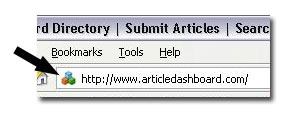
Do you know what is Favicon? Favicon / favorite icon is a small symbol that show in browser, precisely in front of a name of blog or the URL. With use a favicon, our blog will be remembered with our visitors, because our blog has specialty. So, how? You just follow the steps below
Firstly, Back up your Template by click "Download Full Template" in Edit HTML
1. Go to Favicon Generator
2. Upload your symbol, then click "Generate Favicon"
3. Then download the favicon
4. Upload your favicon to a File Hosting, example : Photobucket/Fileave/Ripway (choose one)
5. Get your favicon URL in your file hosting
6. Combine your favicon URL with the code below
for example : <link href='http://robots1996.fileave.com/favicon%20(2).ico' rel='shortcut icon' type='image/jpg'/>
7. Then copy the new code
8. Log in to your blogger account
9. Go to Design>>>Edit HTML
10. Thick Expand Widget Template
11. Search this code : </head>
12. Put the new code above </head>
13. Save it
Firstly, Back up your Template by click "Download Full Template" in Edit HTML
1. Go to Favicon Generator
2. Upload your symbol, then click "Generate Favicon"
3. Then download the favicon
4. Upload your favicon to a File Hosting, example : Photobucket/Fileave/Ripway (choose one)
5. Get your favicon URL in your file hosting
6. Combine your favicon URL with the code below
for example : <link href='http://robots1996.fileave.com/favicon%20(2).ico' rel='shortcut icon' type='image/jpg'/>
7. Then copy the new code
8. Log in to your blogger account
9. Go to Design>>>Edit HTML
10. Thick Expand Widget Template
11. Search this code : </head>
12. Put the new code above </head>
13. Save it
Subscribe to:
Posts (Atom)